
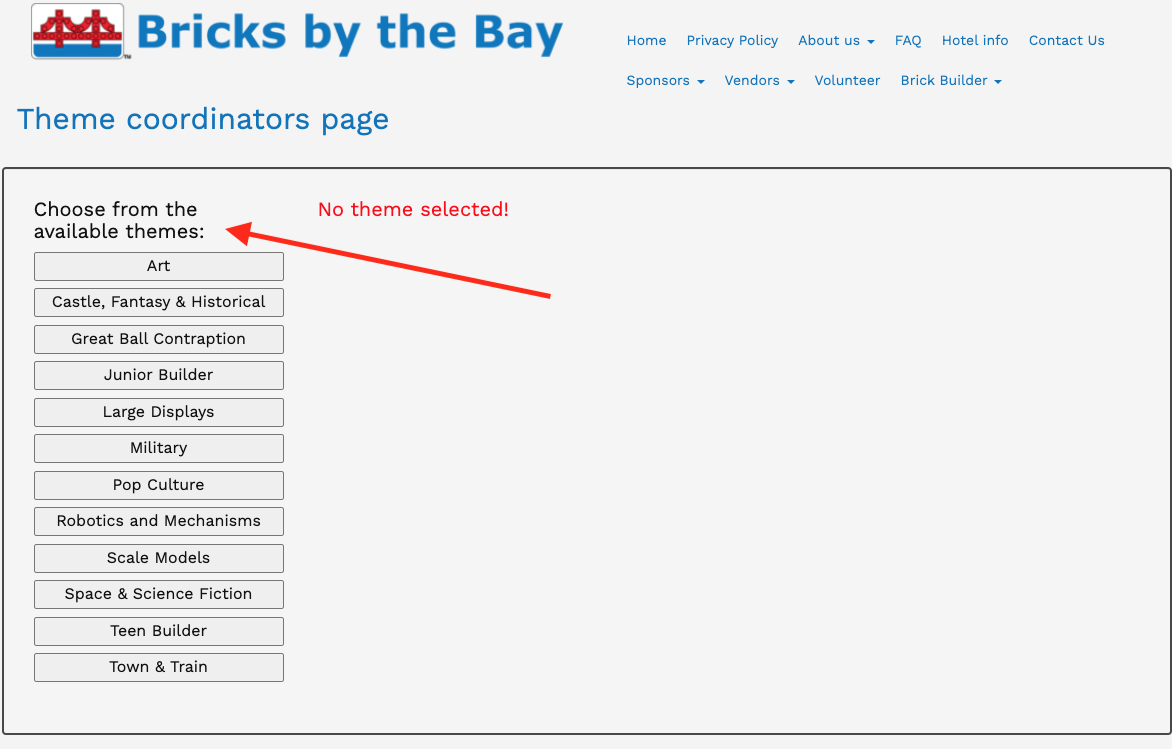
1. The Theme coordinators page looks like this. Select the Theme that you are Coordinating.
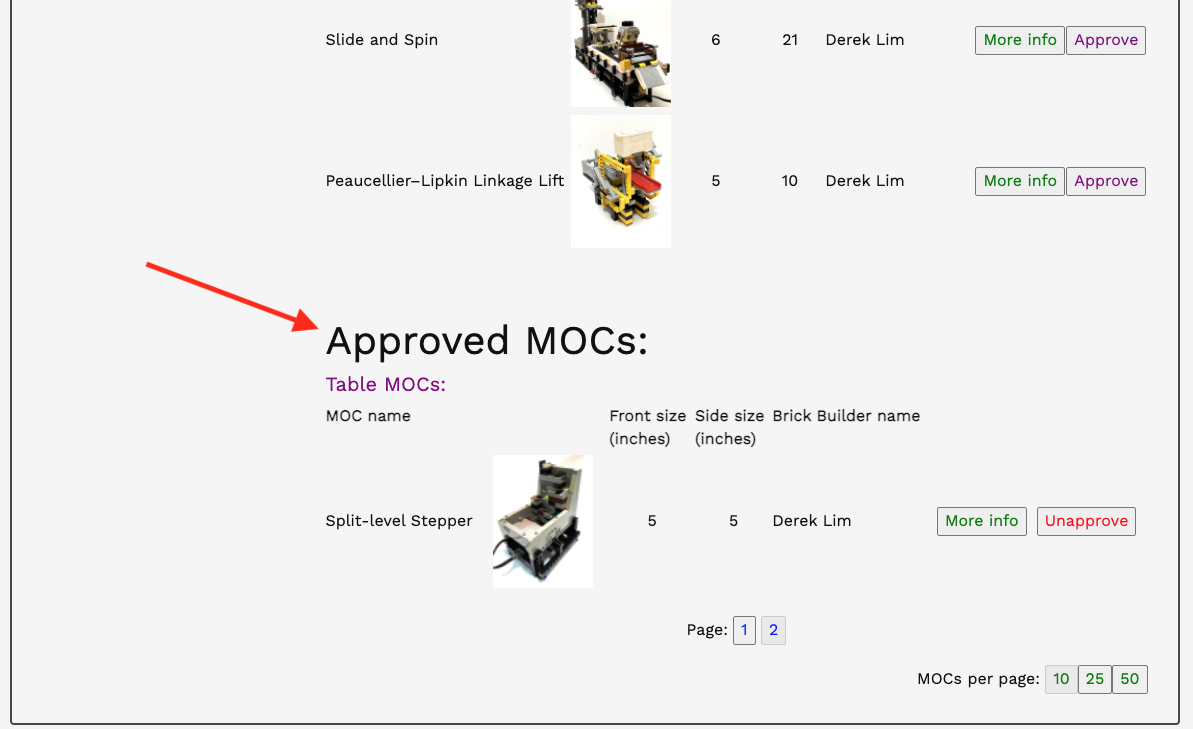
2. You should see a list of Unapproved and Approved MOCs, with the former listed before the latter.
There are also separate subsections for MOCs that sit on tables and MOCs that sit on the floor.

3. If any of the MOCs have been approved, at the top of the page you will see buttons that allow you to:
i. Download a PDF listing of the approved MOCs.
a. This can be handy to have a print-out of before the convention since cellular connectivity inside the Grand Ballroom is not very good.
b. A relatively recent print out will (probably) be provided by the Directors with your Theme Coordinator bag on Thursday evening.
ii. Download a PDF template for printing MOC cards (of the approved MOCs) on tent cards.
a. MOC cards will (probably) be provided by the Directors with your Theme Coordinator bag on Thursday evening.

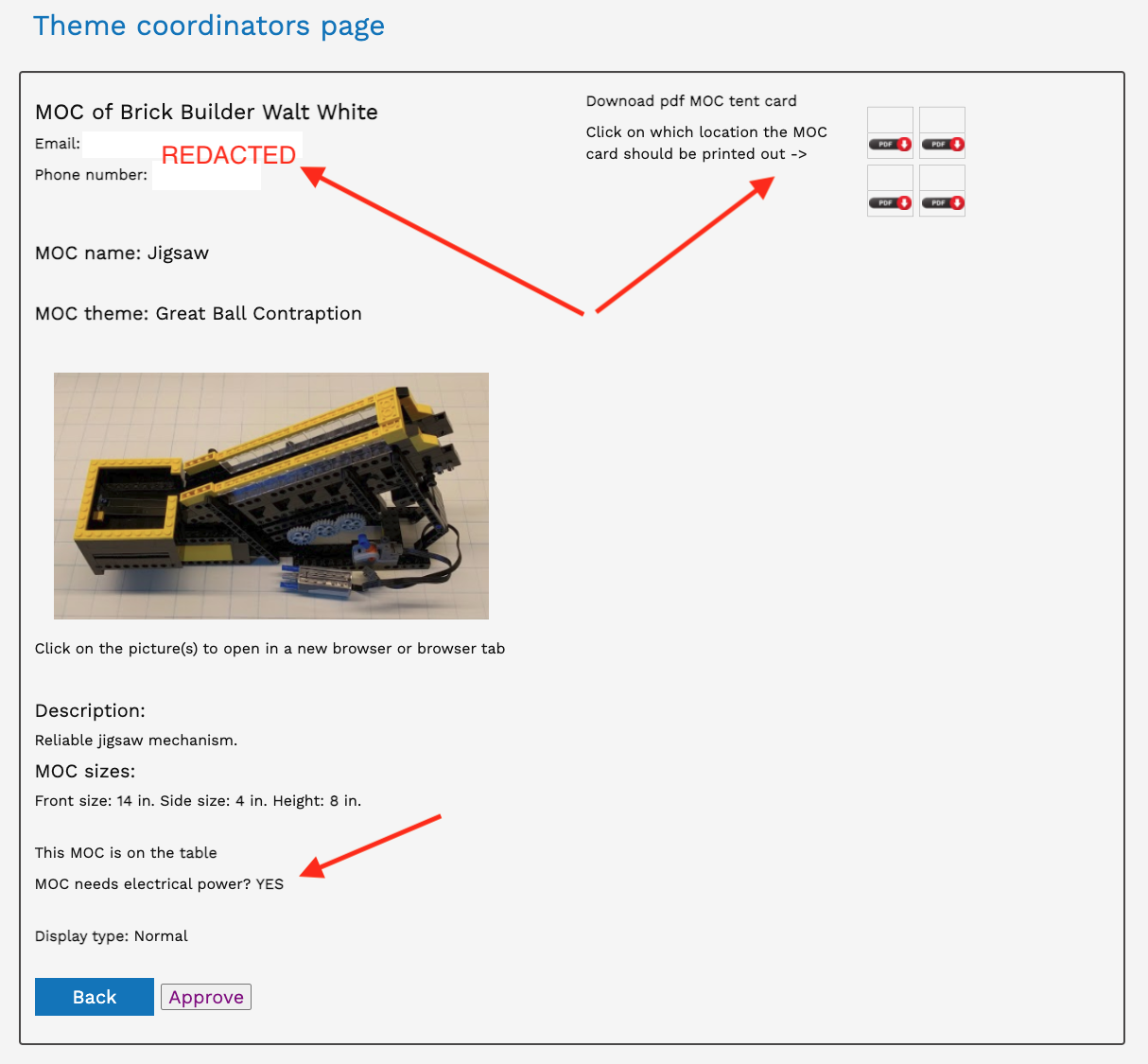
4.Clicking the More Info button will allow you to see details about the MOC, such as
i. Contact information to reach out to the builder
ii. A means of printing MOC cards (and where on a tent card template to print them)
iii. If the MOC needs power
iv. Size of the MOC (compare this to the pictures, because it says inches, but some people enter feet)
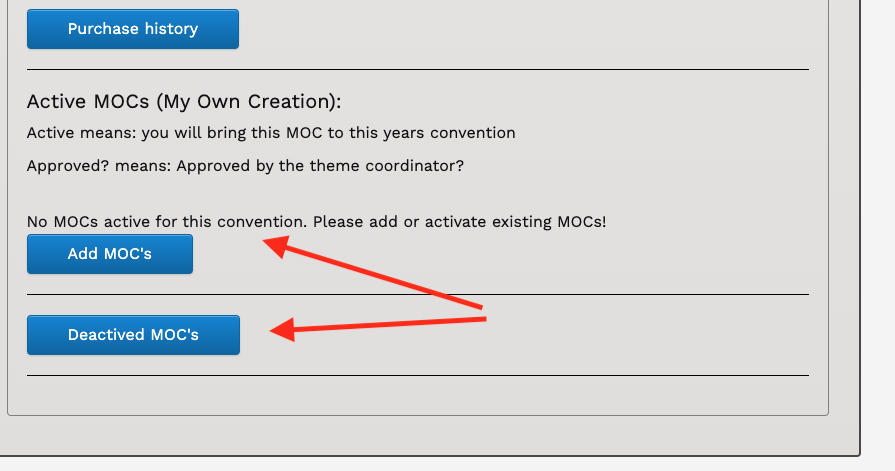
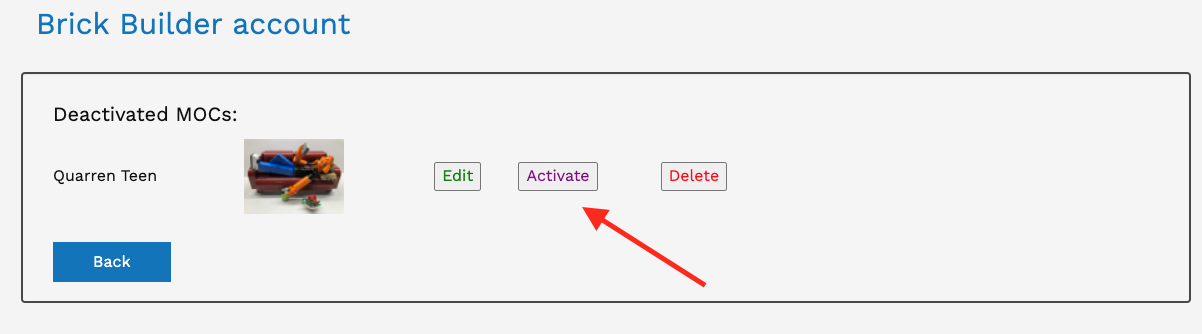
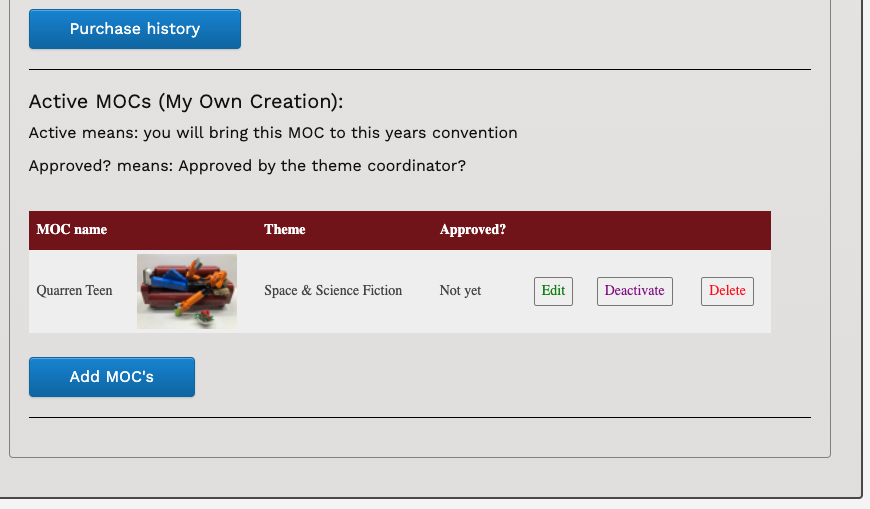
As a side note, MOCs will be stored year to year, but marked as “Deactivated” once the convention is over. This way, (hopefully) Builders won’t assume that all their MOCs are automatically registered each year, and they will manually need to Activate them each year (without having to re-add all the relevant information).
If there are any questions, comments or concerns about these pages specifically, or the the website in general, please contact admin@bricksbythebay.net.
On this page all the submitted SigFig vignette, Event Kit vignette and seed build voting are displayed.
-Click to select which contest you want to see or unselect all to show all contests
-Clicking on the picture will enlarge the picture.
-Here you can choose different ways of showing the pictures =>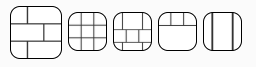
Move your mouse over the picture and click on the star. This will give a vote to the build.
Note:
You can only vote once per contest.
You can not vote on your own builds.
Click on the picture. This will enlarge the picture. Click 
This page shows your submitted SigFig vignette, Event Kit vignette and seed part builds for voting.
-To start uploading your picture click: 
-Fill in the form:
Category: Choose which contest you want to enter.
Title: Name of your build.
Description: Tell something about your build (max 255 characters).
Image upload : Choose file of the picture (max size 1 Mb and dimensions are below 2000 pixels). Only 1 picture per build. So get the best one to impress your voters.
-Click upload
-Click to select which category you want to see or unselect all to show all categories.
-Here you can choose different ways of showing the pictures =>
Click the picture and it will pop up a larger version of the picture. Click 
After changing the info click 
Move the mouse pointer over the picture. There will be a X on the top right corner. Click the X to delete the picture.
On this page all the submitted MOCs are displayed.
-Click to select which category you want to see or unselect all to show all categories.
-Clicking on the MOC photo will enlarge the photo.
-Here you can choose different ways of showing the photos =>
Move your mouse over the MOC photo and click on the star. This will give a vote to the MOC.
Note:
You can only vote once per category/theme.
You can not vote on your own MOCs.
Click on the MOC photo. This will enlarge the photo. Click
This page shows your submitted MOC’s (My Own Creation) for voting.
General Guidelines:
-To start uploading your MOC click:
-Fill in the form:
Category: Choose which one your MOC fits the best (each category will be voted on). For films choose the Film Festival Category. For collaboration choose Large Displays
Title: Name of your MOC.
Description: Tell something about your MOC (max 255 characters).
If this MOC is a collaboration, list participants names: When several people create one bigger display this is the place to name who participated. If the collaboration is made out of several small MOCs of individuals there is a possibility to add a collaboration category. Each individual MOC can be submitted in that category. Contact the webmaster at admin@bricksbythebay.net to set that up.
Film Festival URL: For created films submit the URL here where the file is located
Image upload (cover photo for film Festival): Choose file of the photo (max size 1 Mb). Only 1 photo per MOC. So get the best one to impress your voters. For the film Festival category pick a cover photo.
-Click upload
-Click to select which category you want to see or unselect all to show all categories.
-Here you can choose different ways of showing the photos =>
Click the MOC photo and it will pop up a larger version of the photo. Click
After changing the info click
Move the mouse pointer over the MOC photo. There will be a X on the top right corner. Click the X to delete the MOC photo.
